

eTraxion is designed to replace unwieldy tracking spreadsheets with a fast, flexible database that your school or department can configure for itself. A single eTraxion file can hold several related tables, produce reports, support safe collaboration on a shared drive, and retain the structure needed for future cohorts.
You do not need to be an SQL expert to use eTraxion. Most work happens directly in the table, through the Table, Reporting and Tools menus, or through the dashboard and record view.
All data in the pictures is fake!
Getting started
When eTraxion opens without a database, it shows an Untitled tab. Create a table, add the columns you need, then use File → Save As to create an eTraxion database file. A database can contain as many tables as you need, for example Personal Information, Test Scores, Behaviour and Reports.
Each table has its own columns and records. eTraxion creates and manages the internal record identifiers itself, so users never have to choose a primary key or manage UUIDs manually.
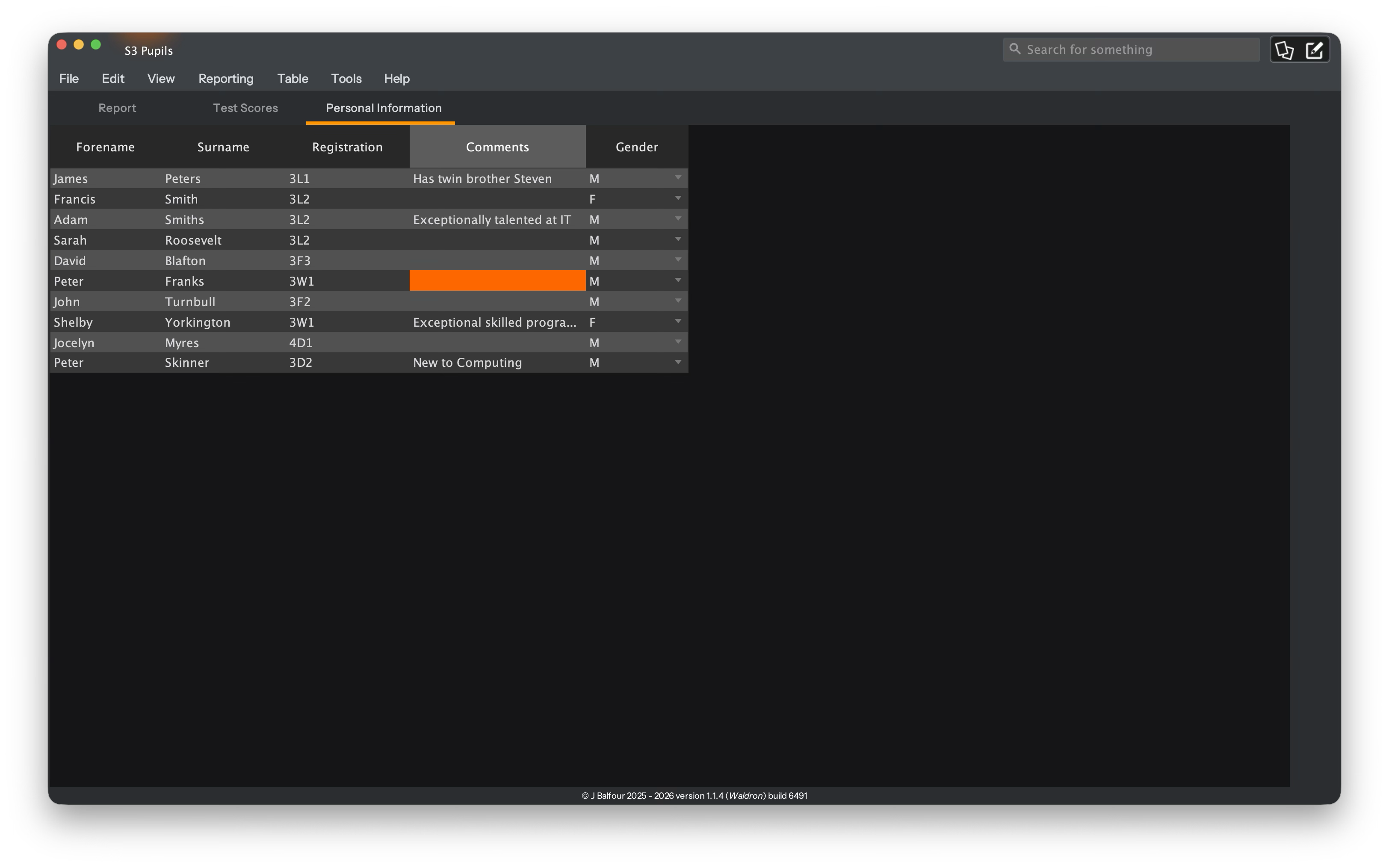
A simple database has been loaded
Designing tables
Adding, editing and removing columns
Use the Table menu to add a column. Give it a clear name and choose the appropriate type. Existing columns can be edited to change their name, configuration and validation rules. Deleting a column removes its data, so eTraxion asks for confirmation before carrying out the change.
Column changes are saved immediately when AutoSave is enabled. In a collaborative database, added and renamed columns are synchronised automatically. Deleting a column is treated more cautiously because it may remove data for another user.
Column types
- Text — a normal editable single-line field. Best for names, classes, short codes and general notes.
- Dropdown List — users choose one value from a fixed list. Good for values such as gender, effort grade, level, status or attendance code.
- Value Lookup — a selectable value linked to another value or presentation. Useful where the stored choice needs to display a meaningful mapped result.
- Calculated Column — displays a value calculated from other fields. Users cannot edit its cells directly.
- Comment Bank — lets users select a band for the comment from a reusable set (that users can provide). The system picks one from that band at random allowing for more variety in reports.
- Link to Another Table — displays a read-only value from another table. For example, a Test Scores table can show forename, surname and registration class from Personal Information. Changes in the source are reflected automatically.
- Large Text Area — an editable multi-line field for longer comments. It wraps text, stays compact in the table, and expands when selected so the full content can be edited.
Validation rules
Validation can be configured from the column tools or conditional-formatting area. These rules help prevent mistakes while users are entering data; they do not impose database-level SQL constraints. Depending on the field, you can set limits such as minimum or maximum text length, whether the value must be numeric, and numeric minimum or maximum values.
This is useful for keeping marks within a sensible range, restricting short codes, or ensuring that a required identifier is not accidentally entered as text.
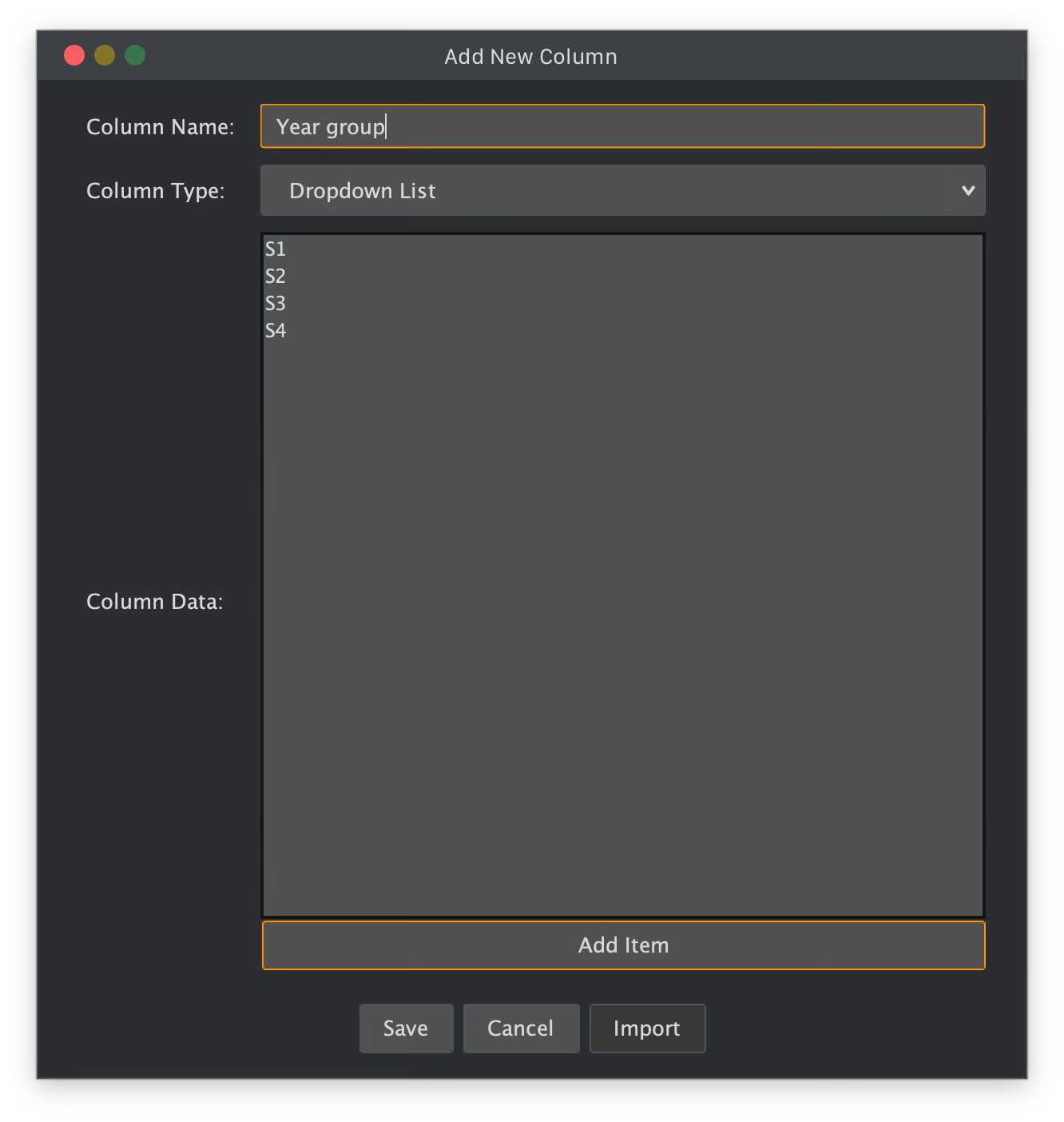
The column editor gives you plenty of options that make it easy to manage your database.
Working with records
Click a cell to select it, then type to edit. Double-clicking opens the appropriate editor. Text Area cells provide a larger multi-line editor; standard text fields remain compact. Use the up and down arrow keys inside an editor to move to the same column in the previous or next record.
eTraxion keeps table editing deliberately direct: you can add records, update marks, sort and filter without moving through spreadsheet-style sheets. Optional grid lines can be enabled from View; they are off by default for a cleaner table view. Alternating row colours make large tables easier to scan.
Record View
Record View presents one pupil or record at a time in a larger, report-friendly form. It brings together original fields from all related tables and ignores duplicated Link fields, so the information appears once in the place it is actually stored. Values can be updated directly in Record View and saved back to the appropriate source table.
Use Alt + Left and Alt + Right to move between records. This is particularly useful when writing or reviewing comments and report text.
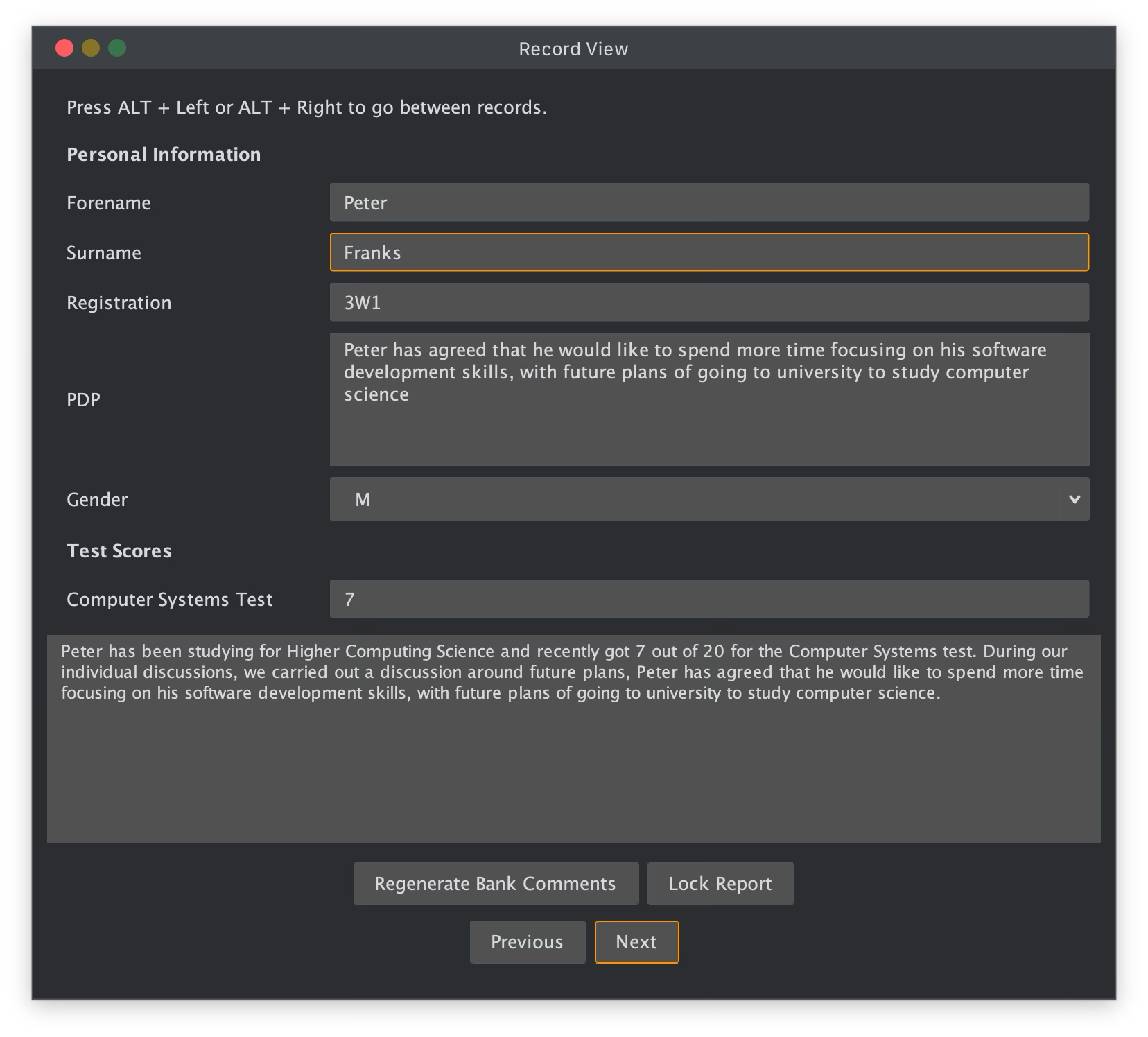
Record View allows you to edit records individually, across multiple tables data.
Linking tables
Link columns are the key to avoiding repeated personal information across every tracking table. For example, create a Personal Information table with forename, surname and registration class, then create a Test Scores table with a Link column for each piece of pupil information you want to display alongside marks.
To create a Link column, choose Link as the type. In the single Link configuration dialog, select the source table and then the source column. The column will then show the current value from that source automatically. Link values are read-only in the destination table, including values which originally come from a combo box or map.
When a new record is added to the source table, eTraxion creates the corresponding linked record in connected tables. Changes to source values are reflected in every linked table. Double-clicking a linked cell takes you to the source table, record and the exact source column that stores the value.
A table can synchronise with more than one other table. This means a reporting table can display personal details from Personal Information and marks from Tests, without forcing you to duplicate either dataset. eTraxion blocks invalid circular links to keep relationships safe and understandable.
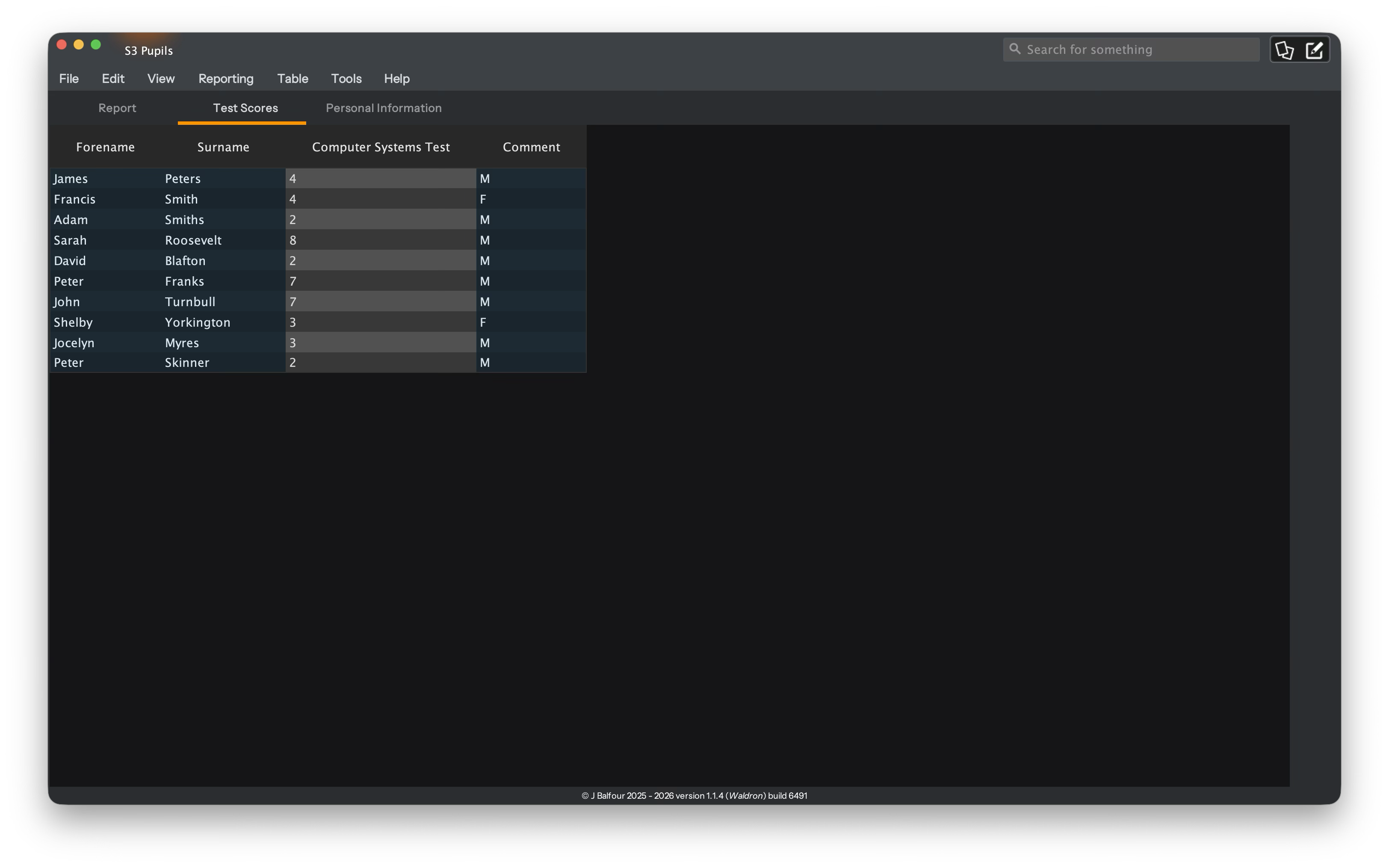
The link column is powerful, linking data from another table to the current.
Collaboration on a shared drive
eTraxion databases can be stored on a NAS or shared file server so several colleagues can work with the same file. This is designed for ordinary school network storage, rather than requiring a web server.
- If another user changes data you have not edited, eTraxion can refresh that data automatically.
- If you have unsaved edits in the affected area, eTraxion warns you and offers Reload or Keep my edits.
- It never silently overwrites local unsaved work.
- Updates are intended to be granular: a changed value, row, column or template is updated without replacing the whole table unnecessarily.
- Linked values, templates and structural changes are synchronised as appropriate.
The status bar identifies collaborative databases and can show active users. eTraxion also records recent changes to cells, retaining the latest few revisions rather than allowing the database to grow indefinitely. Review mode can highlight changes made by other users and show who changed a value and when.
AutoSave
AutoSave can be enabled or disabled from the File menu. When it is enabled, eTraxion saves completed edits after a short pause, rather than saving after every keystroke. Adding columns is saved immediately. Turn AutoSave off when you want to work through a set of changes and decide when to save manually.
Reporting, templates and mail merge
A database has one shared report template which can draw information from multiple tables. In the template editor, select the table in the table picker, then choose a field from that table's list. Inserting a field creates a placeholder in this form:
${Table::Field}
For example, ${Personal Information::Forename} and ${Test Scores::Computer Systems Test} can appear in the same sentence. This makes it possible to generate a report which combines personal details, grades, effort, behaviour and comments without copying values between tables.
Report generation and mail merge understand these multi-table placeholders. The template editor can also use the built-in formatting prefixes where available, such as capitalising or lowercasing the first letter.
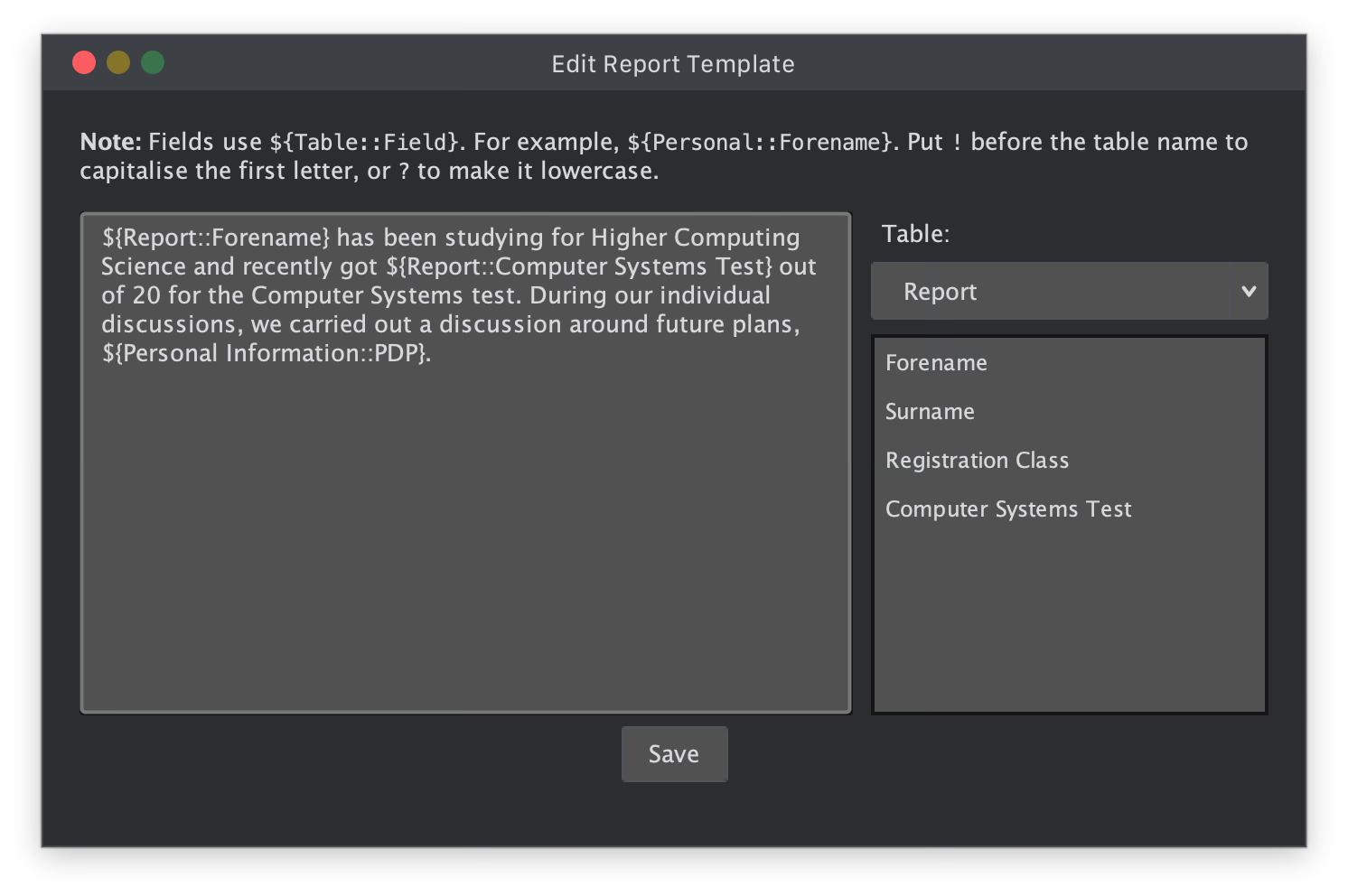
Change the template to whatever you need it to be at any time with minimal change.
Exporting to Word
There are two means of exporting to Microsoft Word, first is as a list - this will give you a Word document with each individual report in one table - this make it really simple to copy out each report. This uses the template to do this.
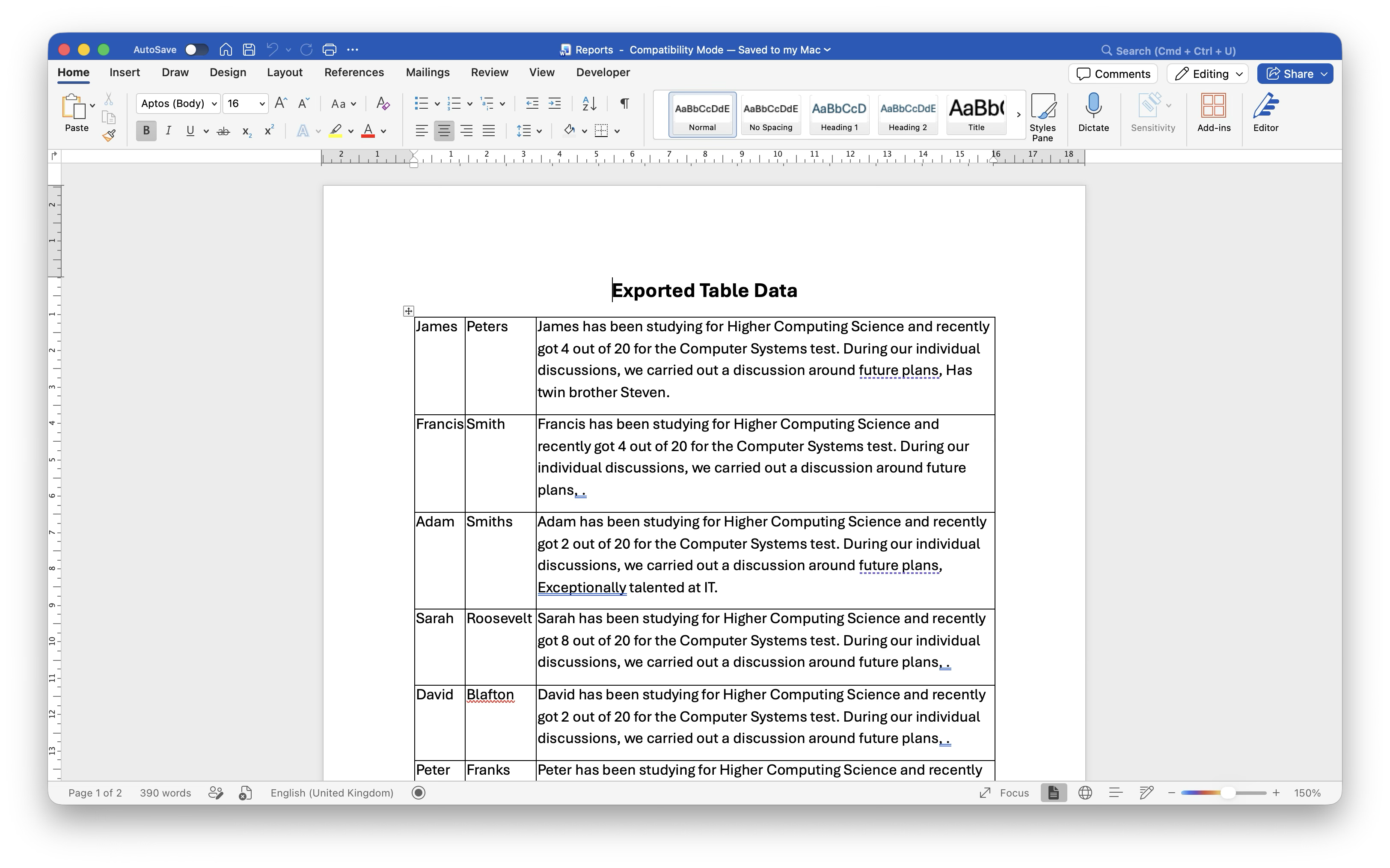
A Word document containing all reports.
The second is slightly different. The mail merge feature first requires a template for the report and you define the field placeholders that it will replace with values, much like an actual mail merge. You have many options for this mode and it gives schools flexibility.
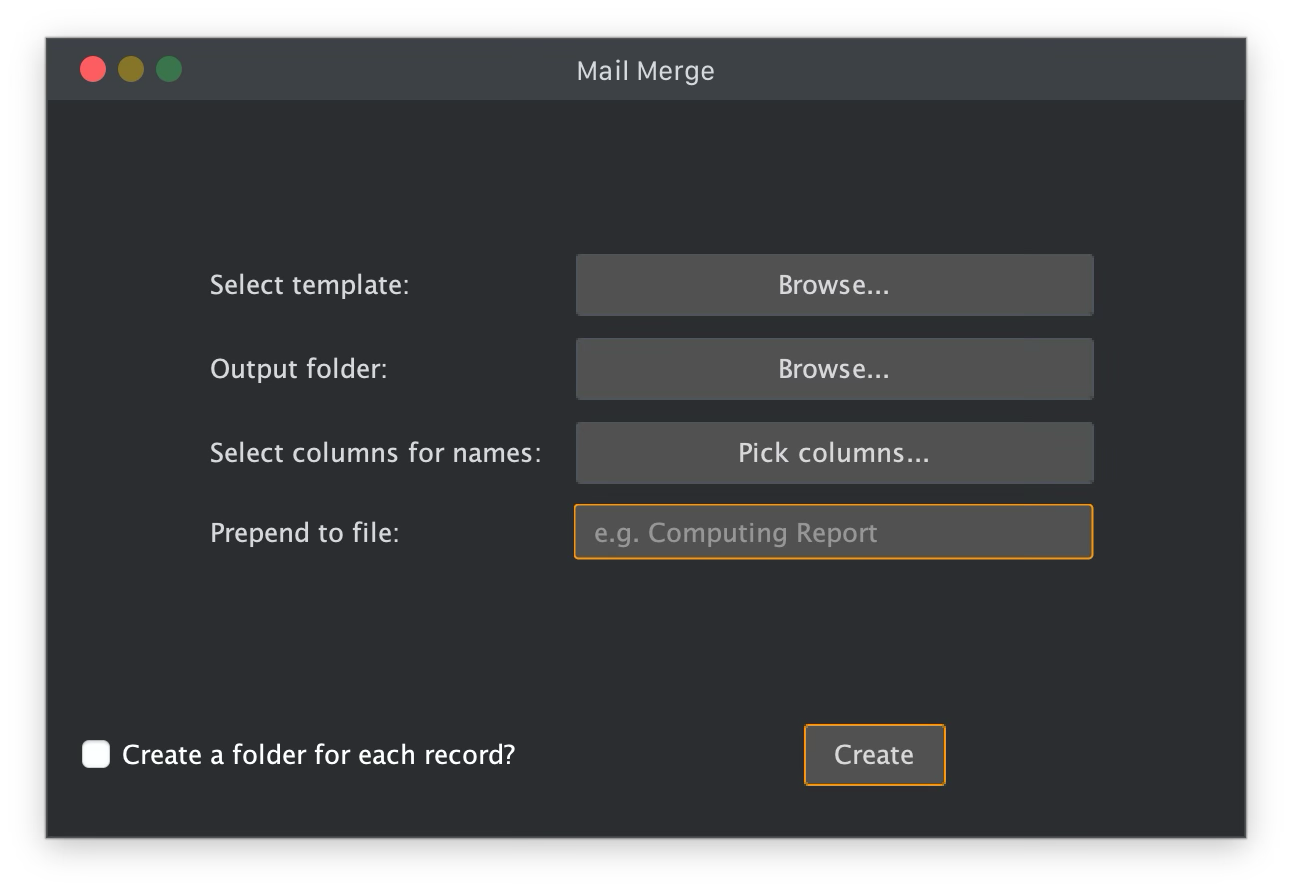
The mail merge dialog options.
First you specify the template. A school may have a template already.
Next you pick where the mail merges should go, if you tick the check box at the bottom labelled 'Create a folder for each record?', you will receive a Word document for each record.
The third button here is important, it allows you to define unique file names for the reports, especially if that check box is pressed. Picking forename and surname in most database is enough, but on occasion you might get two people with the same forename and surname so adding the registration class or something might help - it all depends on the fields you have in the database.
Finally, prepending a name to the file will help you idenify what the report is.
Conditional formatting and safe SQL queries
Conditional formatting highlights cells based on rules you define, making low scores, missing work or other values immediately visible. Use it alongside validation: validation prevents poor input, while formatting makes meaningful values stand out visually.
For advanced exploration, eTraxion includes a safe, limited SQL query panel. It is intended for reading data rather than changing it. You can run straightforward queries such as:
SELECT * FROM Personal_Information WHERE Surname LIKE "Smith"
The help button in the query panel lists the supported commands. Query results are presented in a themed results table and do not directly modify the database.
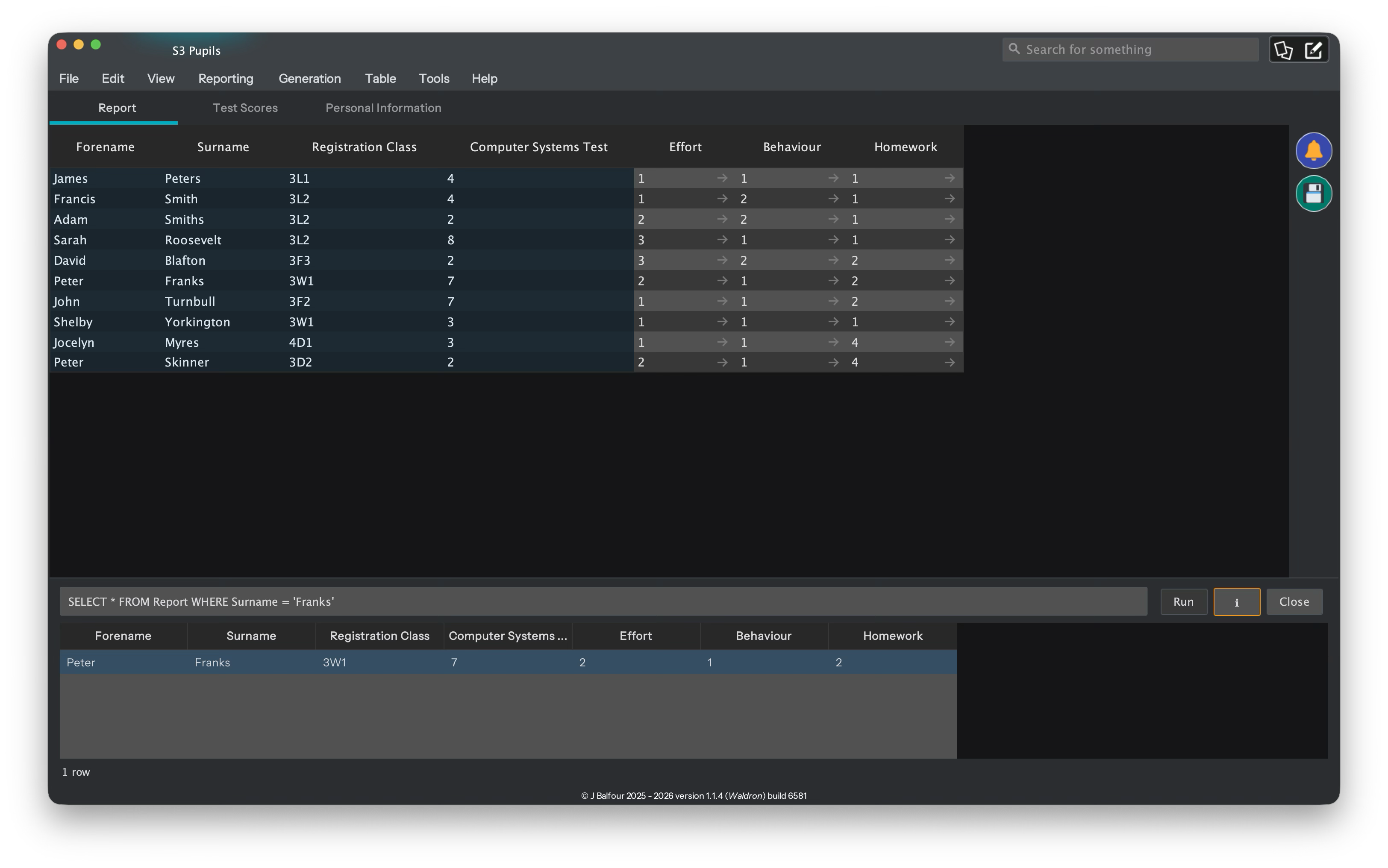
Running an SQL query is easy.
Dashboards
Dashboards provide an at-a-glance view of a database. When a saved dashboard exists, eTraxion can open it with the file. The dashboard itself is a focused full-window view: table tabs, macro toolbar, menus, search and title-bar actions are disabled so the display remains clean.
Use Tools → Dashboard Editor to edit the dashboard. The editor is separate from the normal dashboard view, so viewers do not accidentally change its layout.
Dashboard widgets
- Category chart — counts values such as gender, registration class, effort grade or status.
- Statistic — displays values such as average, highest, lowest or count for a numeric column.
- Message — a custom note for colleagues, handovers or reminders. Messages use a multi-line editor.
Every widget has a name. Widgets flow from left to right and wrap to the next line when there is no more room. In the editor, use the movement controls to change their order, resize controls to adjust their width, and the colour control on charts to choose their series colour. Widget appearance, order, size, messages and colours are saved with the database.
Linked-only tables and linked columns are excluded from dashboard choices: dashboard widgets should use the original data source rather than duplicate display values.
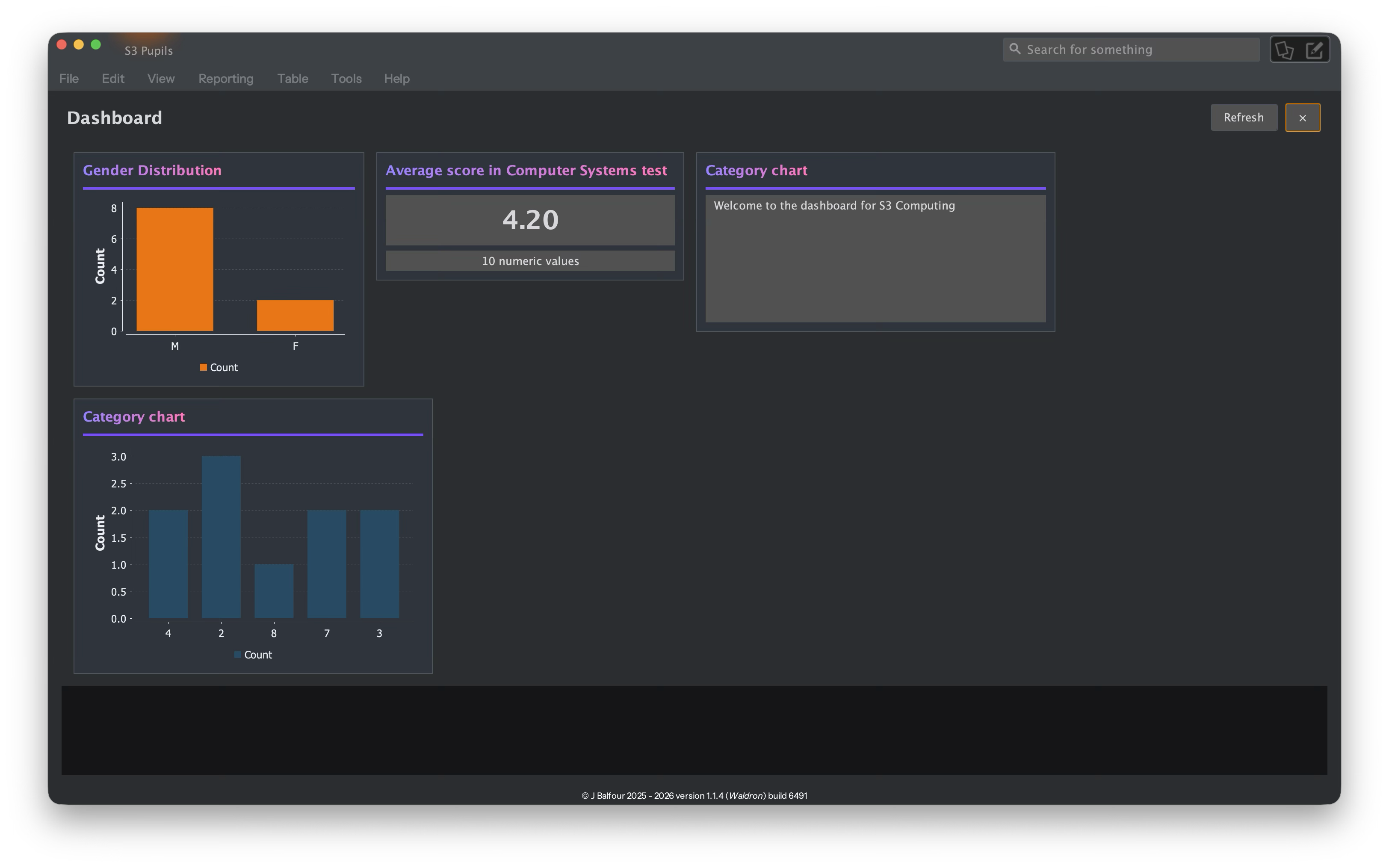
Create your own dashboard to give you an overview of the database when you open it (or at any time).
Macros
Macros let advanced users automate table-specific tasks with ZPE/YASS scripting. Macros belong to the table on which they are created, so button macros and menu macros only appear where they make sense.
Button macros can be shown both in the existing menu and on the vertical macro toolbar. When creating a button macro, choose a one-character emoji icon from the available buttons and select a background colour. The toolbar makes everyday actions much quicker to reach without removing the existing menu option.
The macro-management view lists every macro, its table and its icon. Use the red delete action beside a macro to remove it.
The following code transforms a database into an XLSX file quickly.
// ZPE Macro Scripting Interface

$book = new XLSX()
$book->new_file()

for($tableIndex = 0 to Database->table_count())

  $table = Database->get_table($tableIndex)

  if ($tableIndex == 0)
    $sheet = $book->get_sheet(0)
  else
    $sheet = $book->add_sheet("Sheet " & $tableIndex + 1)
  end if

  //Sets the name of the XSLX workbook from the database tab name
  $sheet->set_name(Database->get_table_name($tableIndex))

  for($row = 0 to $table->row_count())

    for($column = 0 to $table->column_count())

      $value = $table->read_cell($row, $column)
      $sheet->set_cell($row, $column, $value)

    end for
  end for

end for

$path = Window->save_dialog("Save file")

if($path != null)
  $book->save($path)
  Window->alert("Saved correctly to " & $path)
end if
Importing, exporting and reusable structures
CSV data
CSV import and export work with the currently selected table only. This is intentional: you can import a pupil list into Personal Information without accidentally changing scores or report data in other tables. Likewise, exporting produces a CSV of the active table, ready for checking or sharing.
Database structures
Use structure export to create a reusable configuration file for a new cohort, department or school. A structure export includes the information required to recreate the database design, including tables, columns, column configuration, validation, links, conditional formatting, macros, dashboard layout and widgets, saved column sizes and related settings.
Importing a structure configuration creates the same design in a new database without carrying across pupil data. You can also import the structure from another eTraxion database. This is ideal for creating next year's tracking database from a proven template.
Unity Reports
Unity Reports allow subject teachers to submit their completed reports to a shared folder, then allow office staff to create one Word document per pupil containing every subject report.
Teacher setup
Before submitting, choose File → Generation Properties. Here you can choose the shared Unity Report folder, enter your name, select which field contains the generated report text, and map your table columns to the required report fields.
The shared folder must contain a file named unity-report-requirements.json. This tells eTraxion which fields every teacher must submit.
When you submit, eTraxion creates or replaces your current Unity Report submission in the shared folder. This means you can safely correct marks or comments and submit again without leaving older versions behind.
Submitted values
- Normal text, number and list fields are submitted as shown in the table.
- Map fields submit their displayed value, rather than the internal key.
- Comment Bank fields select a random comment from the band chosen for each pupil.
- Additional fields can be configured once, for example
SUBJECT = Computing Science. - The selected template placeholder, usually
TEACHER_COMMENT, contains the generated report text.
Office report generation
Office staff can open the Unity Report generator from the Generation menu. Select the shared submission folder, a Word template and an output folder. Optionally, select documents to prepend or append, such as a cover sheet or an index.
The generator creates one Word document per pupil. Each subject report is placed on its own page within that pupil’s document.
Office template placeholders
Use placeholders in the Word template in the form ${FIELD}. Placeholder names are case-insensitive.
${SUBJECT}

${EFFORT}
${BEHAVIOUR}
${HOMEWORK}

Dear ${FORENAME}, please see your report for ${SUBJECT} below.

${TEACHER_COMMENT}
eTraxion replaces placeholders with the submitted data when the office generates the reports. Both ${FIELD} and the older {$FIELD} form are accepted.
Planned CSV-linked source tables
eTraxion is designed to support a workflow where a school information system exports pupil data to CSV, and eTraxion uses that CSV as a monitored source table. A robust refresh checks the complete replacement file, preserves the internal record UUIDs, updates changed values, adds new pupils and refreshes linked columns. If the source file is incomplete, malformed or temporarily locked while it is being written, eTraxion keeps the previous data safe.
Customising your workspace
- Reorder table tabs to suit the natural workflow for your department.
- Resize columns; eTraxion saves their widths with the database.
- Choose light or dark mode. Tables, editors, dialogs, lists, tabs and dashboard widgets follow the selected theme.
- Use the file chooser to open databases from local drives and shared folders. It includes back, forward, up, refresh, breadcrumb navigation and a manually editable address bar.
- Rename the database to update the title shown in the window title bar.
A recommended school workflow
- Create or import a Personal Information table containing forename, surname, registration class and other core details.
- Create tracking tables such as Test Scores, Behaviour or Homework.
- Add Link columns to display the right pupil information in each tracking table.
- Add the subject-specific fields to each tracking table.
- Set validation and conditional formatting for the values that matter.
- Create a multi-table report template using
${Table::Field}placeholders. - Build a dashboard with a few genuinely useful charts, statistics and a handover message.
- Save the structure configuration so the same design can be reused for the next cohort.
- Store the database in an appropriate shared location if colleagues need to collaborate.
After this, the Unity Report workflow makes sense for generating school-wide reports.
Keeping data safe
eTraxion is built around managed database files rather than ad-hoc spreadsheets. Even so, normal data-care practices still matter: keep access to shared folders limited to the right staff, maintain backups through your school's usual systems, test structure imports on a copy when trying a major redesign, and use clear table and column names so colleagues understand what is being edited.
With a reusable structure, linked tables and shared report templates, new features no longer require a completely separate spreadsheet for every version. The database can evolve with the school while keeping the core pupil information in one reliable place.
Thank you to ChatGPT for helping me compose this webpage, it's taken me too long to build eTraxion and the thought of trying to write a manual was upsetting enough to make me want to forget it altogether - but as a software engineer I know that's not right. So thanks ChatGPT!