

I have been reviewing monitors for as long as this website has existed, and I have a good understanding of what people want from them, based on both comments and emails as well as my own personal experience.
Dell has long been my go-to for monitors, but this time, I discovered a company called Alogic that produces a range of displays that appear high-quality.
This review will examine the 27-inch Alogic Clarity Pro Touch.
My requirements
Much like my Dell U3421WE widescreen monitor, this monitor aims to replace it; my new monitor seeks to provide a single solution to all of my computer needs. I have, for the last few years, been an eGPU user when I do either graphics or video editing, as well as for the odd bit of gaming. If I'm not doing anything intensive, I'll use a USB-C port to connect my laptop to my monitor, providing me with both USB ports and video capabilities. This has been my setup for a few years, and my Dell U3421WE has done this well for many years.
In 2024, after many years of using an ultrawide monitor, I'm seeking to return to a 16:9 aspect ratio with 4 K resolution. The screen also needed to feature built-in speakers, which are only required to be decent, not exceptional. I don't want to give up my docking setup, however. I wish to use the USB-C port on the monitor to dock my laptop, connect to the mouse and keyboard, as well as the display and sound.
I want a 4K display and a built-in webcam this time, and that's where the Alogic Clarity Pro comes in.
About Alogic
Alogic is a company I had seen repeatedly advertised on Facebook, and I felt like I wanted to try Alogic's products.
I was at first a bit sceptical about buying from a company like Alogic as they might not have the same level of commitment to their devices and customer service as someone like Dell (who are exceptional when it comes to customer service, as I have mentioned before, they have replaced monitors more than 3 years old for free when they develop an issue).
Design
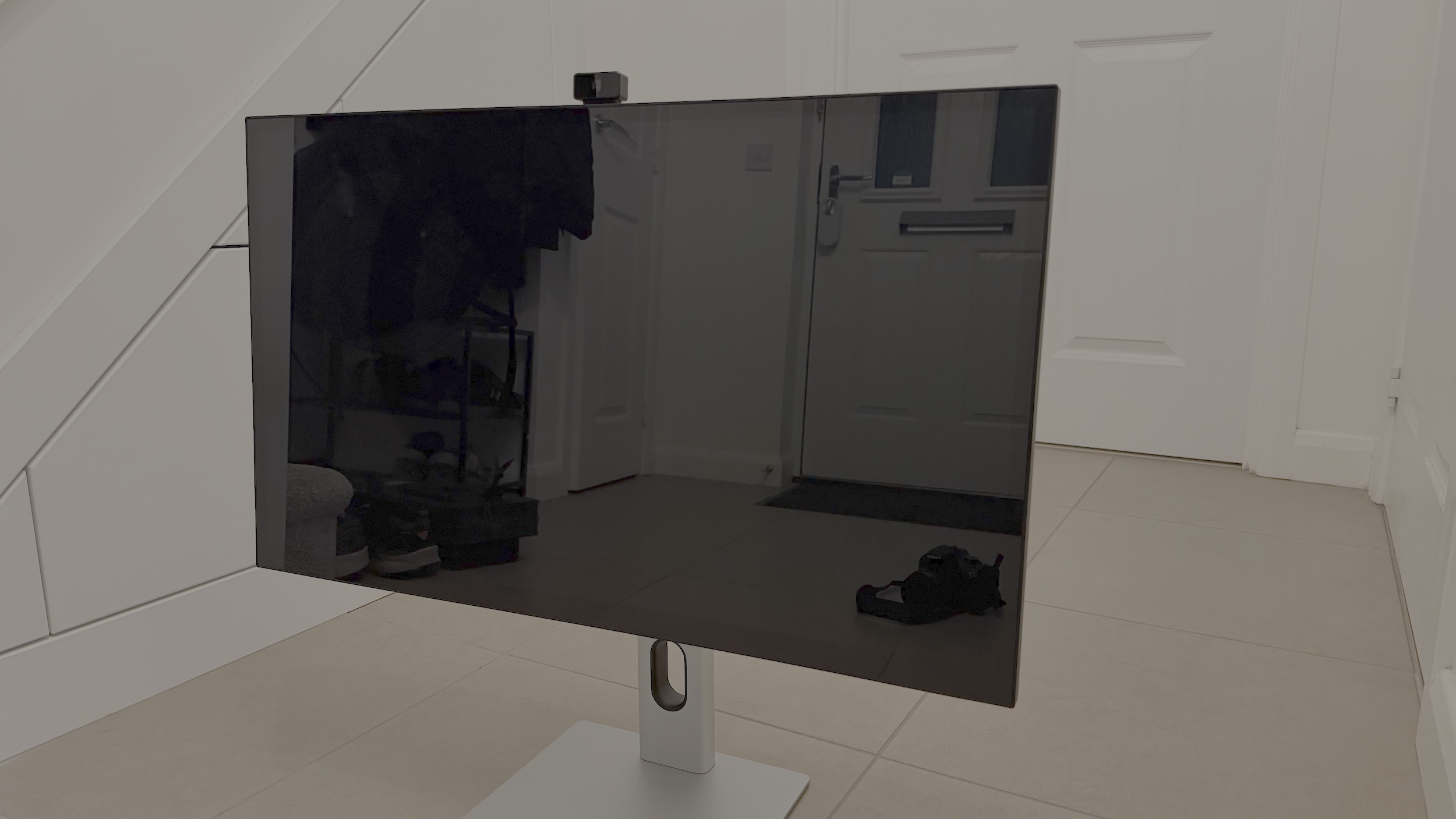
The first thing that drew me to Alogic's monitors was the design. The Apple Pro Display inspires the design of these monitors. It feels solid and is well-built. The material used isn't as good as Apple's, but it's less than half the price of their cheapest model (and it includes a stand and can be mounted using a VESA wall mount with no problems - well done, Alogic!).
One of my favourite features of the Clarity is that the ports are mounted horizontally, meaning you can see where you are plugging into. This looks a lot tidier and more convenient than doing this the old-fashioned way.
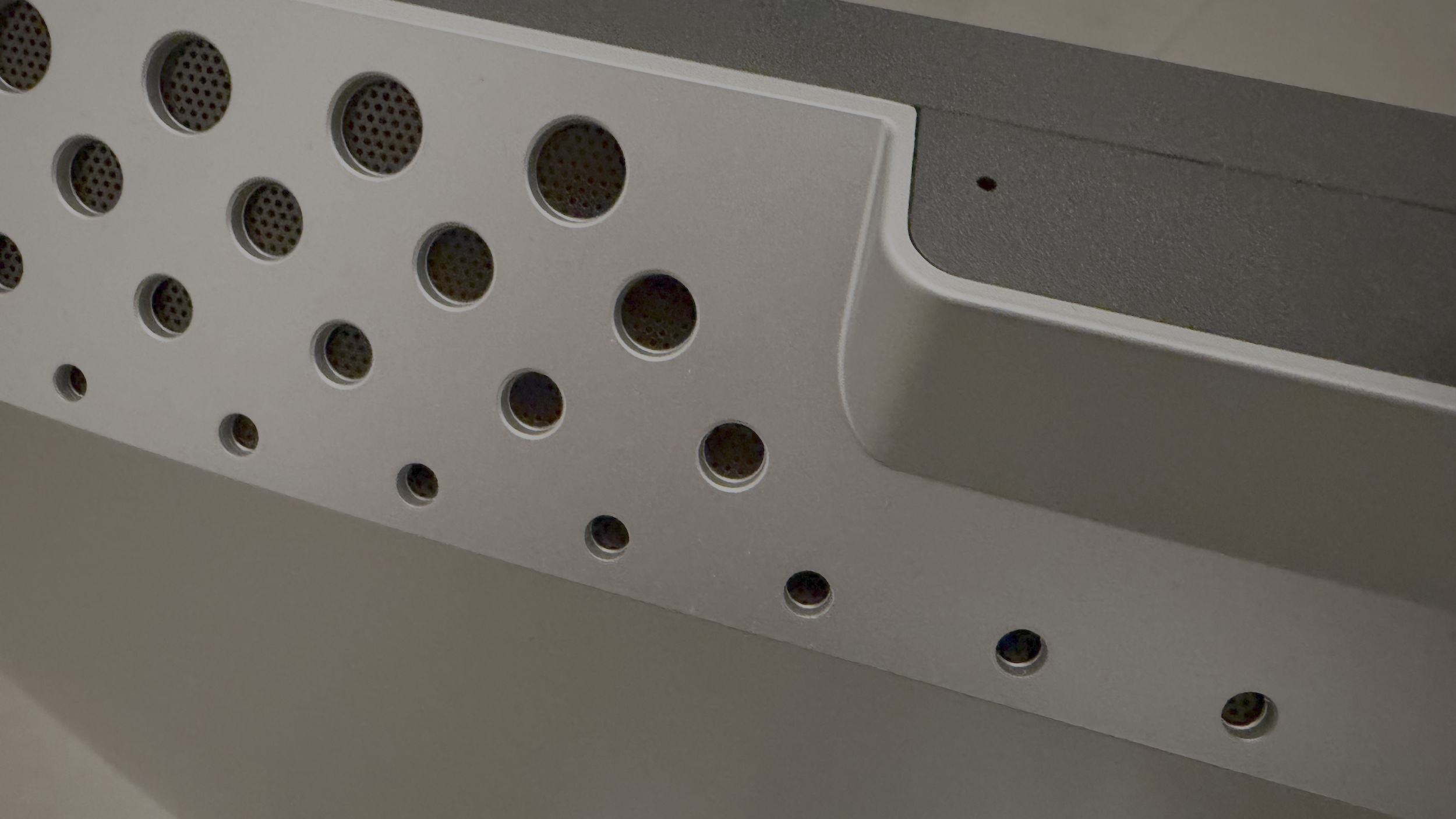
The top of the monitor uses this really nice design with lots of holes
The stand complements the monitor's appearance nicely.
Sadly, Alogic went with buttons on the bottom of the display. Whilst these are useful, this is the first monitor I have had in 14 years where the buttons are utterly annoying. Unlike previous Dell monitors with buttons, the Alogic monitors have buttons with no indication of their location above them, so you have to feel around for them. One redeeming feature is that when you open the menu, at least on the touch model, you can simply touch the screen to change settings. The menu is extensive, too.
Features
The Clarity features an excellent display. The monitor covers 100% of the sRGB colour space, 99% of the Adobe RGB colour space, and 93% of the DCI-P3 colour space, ensuring accurate colour reproduction across various applications, including graphic design, photo editing, and video production. With a 350 cd/m2 brightness level and support for High Dynamic Range (HDR), the Clarity Pro enhances contrast and colour depth, resulting in more lifelike images and videos. All of this is achieved through its IPS display, which supports over 1 billion colours and provides 178-degree viewing angles.
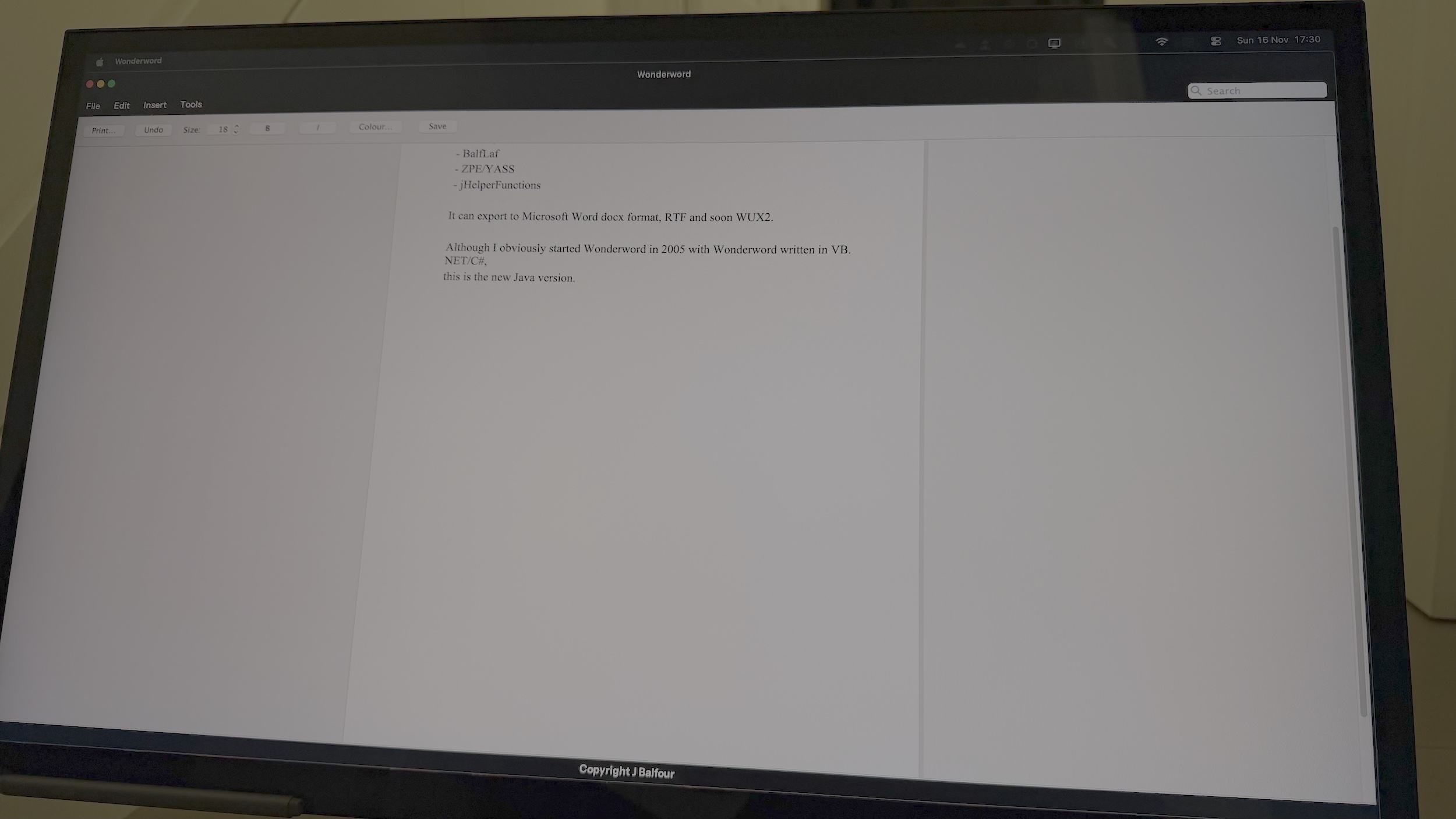
The screen is really high-quality, bright and scales beautifully with macOS
The monitor supports resolutions up to 3840 by 2160 (4K) at 60Hz. It has a slow response time of 12ms, which is a bit below that of many other monitors today, but that's not really an issue on a display designed for creators above all else. It also features a contrast ratio of 1000:1, which is exceptional. This is mainly made possible by the glossy display, which enhances the display's colour depth.
There's no FreeSync or G-Sync built into this display, which is not expected in a monitor of this type.
The monitor also supports touch. You only need a computer with a USB-A or USB-C port to support touch. You can then configure each video source (DisplayPort, HDMI 1, HDMI 2, or USB-C) to connect to the computer using USB-A or USB-C, and then you're set.
The auto-retracting webcam is a really cool feature
It also features an excellent little 8 megapixel webcam that hides away when not in use. This is nice for appearance and privacy. The webcam quality is actually really good, so well done to Alogic for that!
In addition to the webcam, there are, of course, a pair of stereo microphones that are reasonably good quality (they're not studio quality, though, so don't expect much here).
The stylus
The Alogic Clarity Active Stylus Pen is a surprisingly polished companion to the Clarity Pro 27" Touch monitor. It’s clearly designed with productivity and creativity in mind, and it delivers a writing and drawing experience that feels far closer to a premium tablet than you’d expect from a desktop monitor accessory.
The pen offers 4,096 levels of pressure sensitivity, resulting in smooth, natural strokes when writing or sketching. It responds well to subtle pressure changes, whether you’re annotating documents, sketching UI ideas, or doing light digital artwork. Tilt sensitivity is also supported, giving you more expressive control for shading and angled strokes — a feature not often found at this price point.

The stylus is not only cheap to buy, but it's excellent with 4,096 levels of pressure sensitivity
The stylus feels responsive with minimal noticeable latency. Handwriting, highlighting, and quick notes feel comfortable and fluid. The inclusion of a rear "eraser" button is a thoughtful touch: it makes the whole experience feel more intuitive, mirroring the behaviour of more expensive pens like those for Microsoft Surface devices.
There’s no pairing or software setup required — it simply works with the Clarity Touch monitor thanks to its MPP 2.0 compatibility. Charging is handled via USB-C, and in regular daily use the battery lasts well. The magnetic attachment on the side of the monitor is handy, though its strength is better for storage than active transport.
Connectivity
The monitor features many video ports, including a DisplayPort 1.4 port, two HDMI 2.1 ports and a USB-C port that supports DisplayPort 1.4. It's great to see HDMI 2.1 support on this monitor. One thing I feel is missing from this monitor is a DisplayPort out. It's a fantastic thing to be able to chain like that.
The monitor also features 2 USB Type A upstream ports. These are only featured on the back, and there are no easy-access ports, which is a shame compared to competitors that feature two on the rear and two near the front. Both USB ports are USB 3.0 5Gbps ports capable of 7.5W each (nice).
The monitor features a USB 3.0 Type-B connector and a USB Type-C connector, allowing two computers to be easily connected.
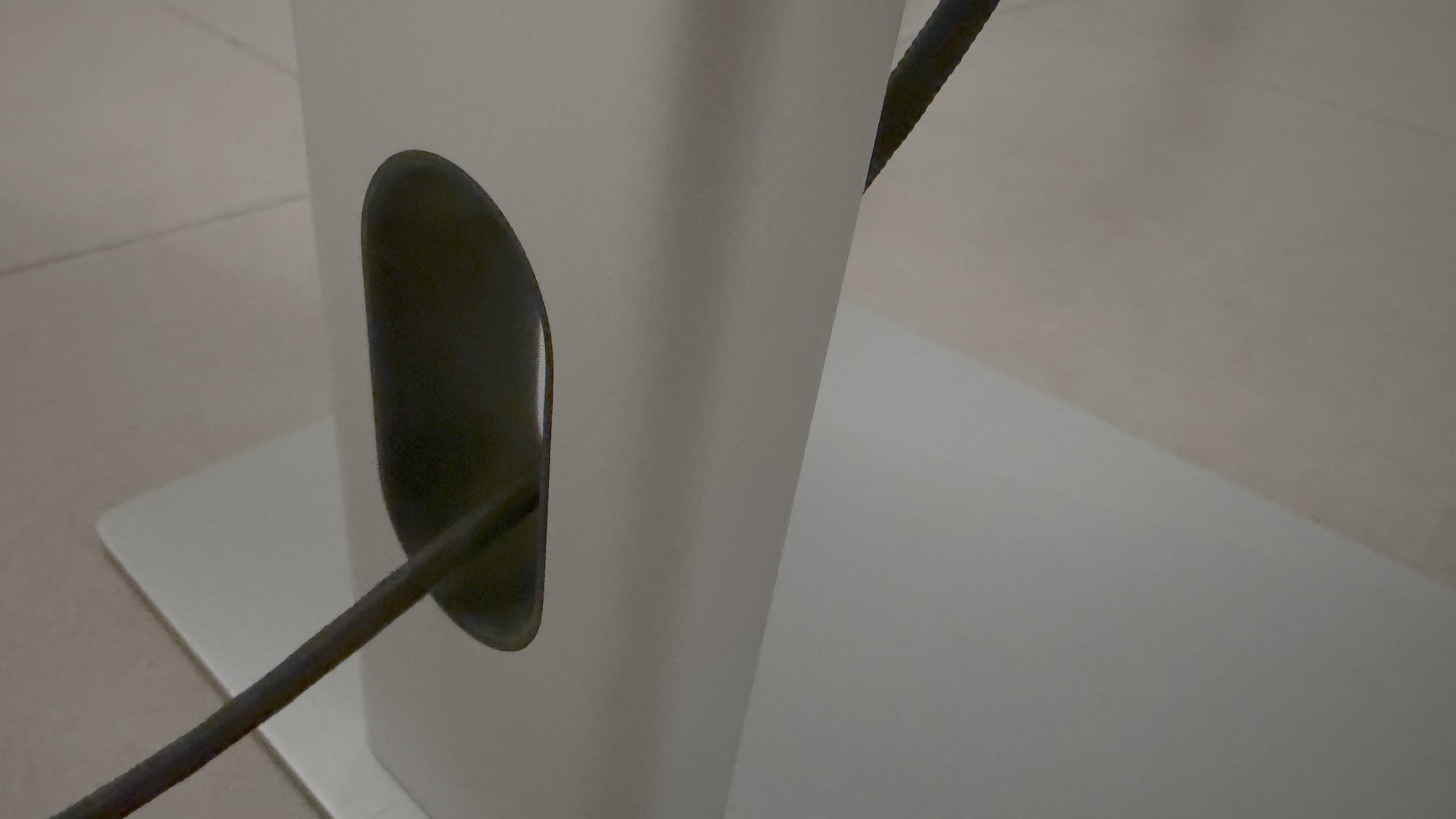
The cable routing on the stand is excellent
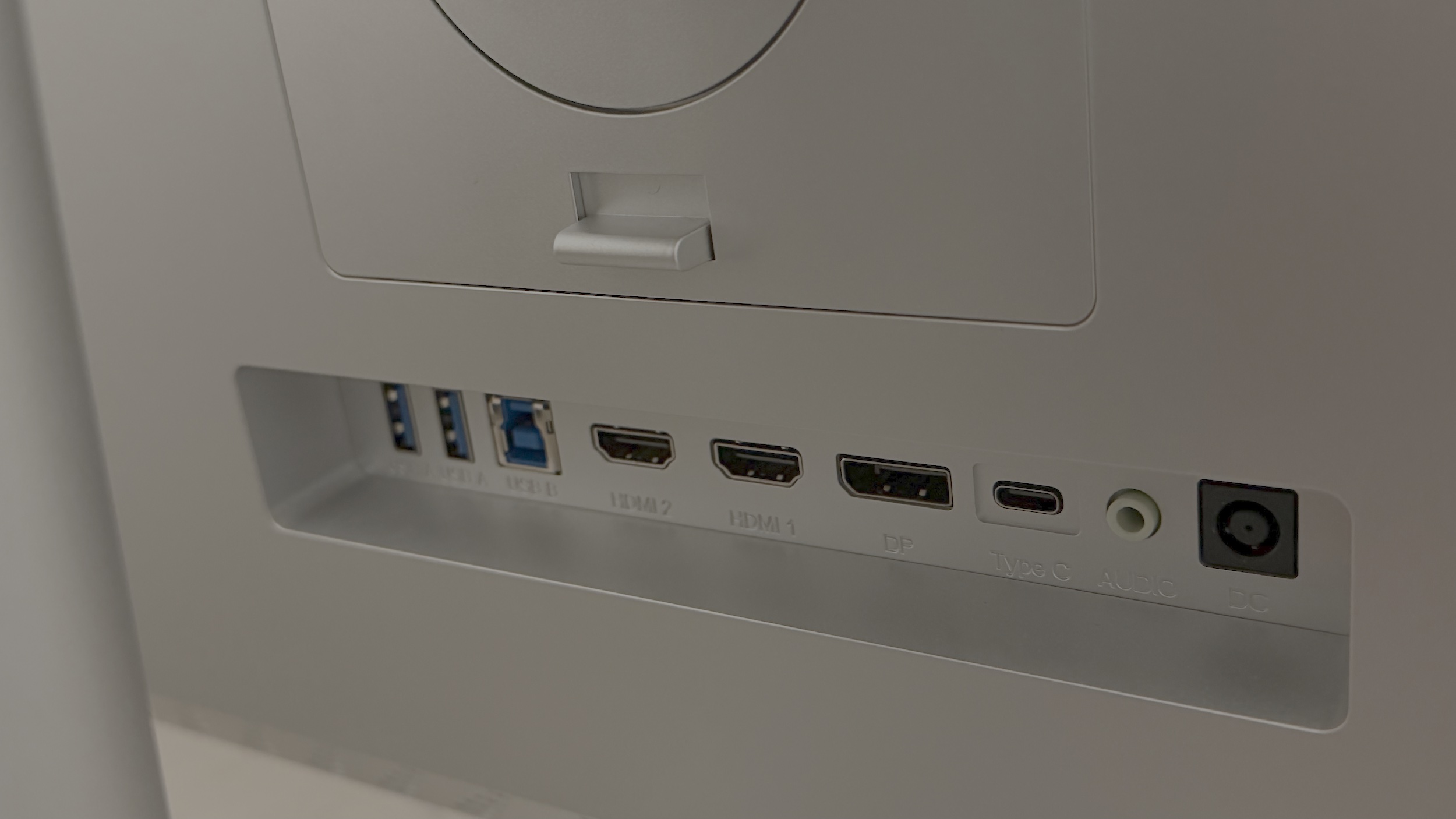
The selection of ports is excellent
The issues
These two points seriously frustrate me and let the monitor down.
Sadly, the monitor's USB port is one of my main concerns. This monitor feels like a huge step backwards for me. I say this because, first, it doesn't feature a proper KVM, even though it does support USB-C and USB-A connectors and allows them to be connected to separate video inputs.
Next, USB-C is a significant issue, and I have included a YouTube video explaining what happens. This is one of the most irritating features of this display. Simply put, when you connect a laptop to the monitor using USB-C, the monitor appears to connect but then switches itself off after a few seconds before you get the chance to even see if it's on the correct input (and it also doesn't give you an option to automatically switch to USB-C when a USB-C device is connected, again, unlike previous monitors I have reviewed or owned).
My next issue is a ridiculous issue that should be addressed immediately. I play games on my desktop, often just simple games like Minecraft, Age of Empires or Warcraft III. With each of these different games, I run at various resolutions; for example, Age of Empires II runs at the full 3840 by 2160 resolution at 60Hz, but Age of Empires IV is a bit more demanding on the GPU of my EliteBook, and I occasionally do not connect to my eGPU and just connect with either HDMI or USB-C. I therefore run the resolution slightly lower in the game at 2560 by 1400. Now, here's the problem this monitor suffers from, and it doesn't happen on my previous monitors; because Age of Empires IV is running at a lower (or different) resolution to my desktop, which is at 3840 by 2160, I lose the connection to the USB ports on the monitor when connected with either USB-C or HDMI, this seems like such an odd thing, but this messes everything up in my setup. And I'm not talking about two or three seconds either; I'm talking about sometimes more than 15 seconds.
Furthermore, I have encountered issues adjusting the resolution of my other connected displays when using the USB ports on the monitor. What happens is that you change the resolution of any display and, as Windows only gives you 15 seconds to accept the new display settings and you lose the USB connection when the resolution changes, I cannot change the resolution unless I remove the mouse from the monitor and plug it directly into the computer - totally defeating the purpose of the USB ports on the Clarity. This is utterly awful and substandard.
Conclusion
I would not recommend this monitor to anyone who, like me, wants a streamlined and straightforward desk setup that allows for docking a laptop, playing games, and working. I would, however, recommend it to people who want an excellent display with fantastic colours and perfect colour.
I am utterly disappointed by this monitor and would recommend that if you intend to use the USB-C feature, steer clear of this monitor. Or you'll be disappointed and frustrated.
I would not recommend this monitor, sadly. I had such high hopes for this monitor, too, but now it's just sitting in the corner of my office as a £800 paperweight.
- Excellent build quality
- 4K high resolution
- Touch screen is one of the best
- The exceptional display with excellent colour
- A full range of connectivity options
- Built-in speakers
- Price is high (although at this price it is still a good alternative to the Apple Studio Display)
- Issues with connecting to devices and not providing video over USB-C

Comments are welcome and encouraged, including disagreement and critique. However, this is not a space for abuse. Disagreement is welcome; personal attacks, harassment, or hate will be removed instantly. This site reflects personal opinions, not universal truths. If you can’t distinguish between the two, this probably isn’t the place for you. The system temporarily stores IP addresses and browser user agents for the purposes of spam prevention, moderation, and safeguarding. This data is automatically removed after fourteen days. Your email address is stored so that replies can be sent to your email address.
Comments powered by BalfComment